Configure Legal Hold Settings
- Go to CaseCloud Setup > Legal Hold.
- Click Edit.
- Configure the required legal hold options.
- Click Save.
Record Types under Legal Hold
Use the toggle beside each record type to determine whether records of that type are included in the legal hold process.
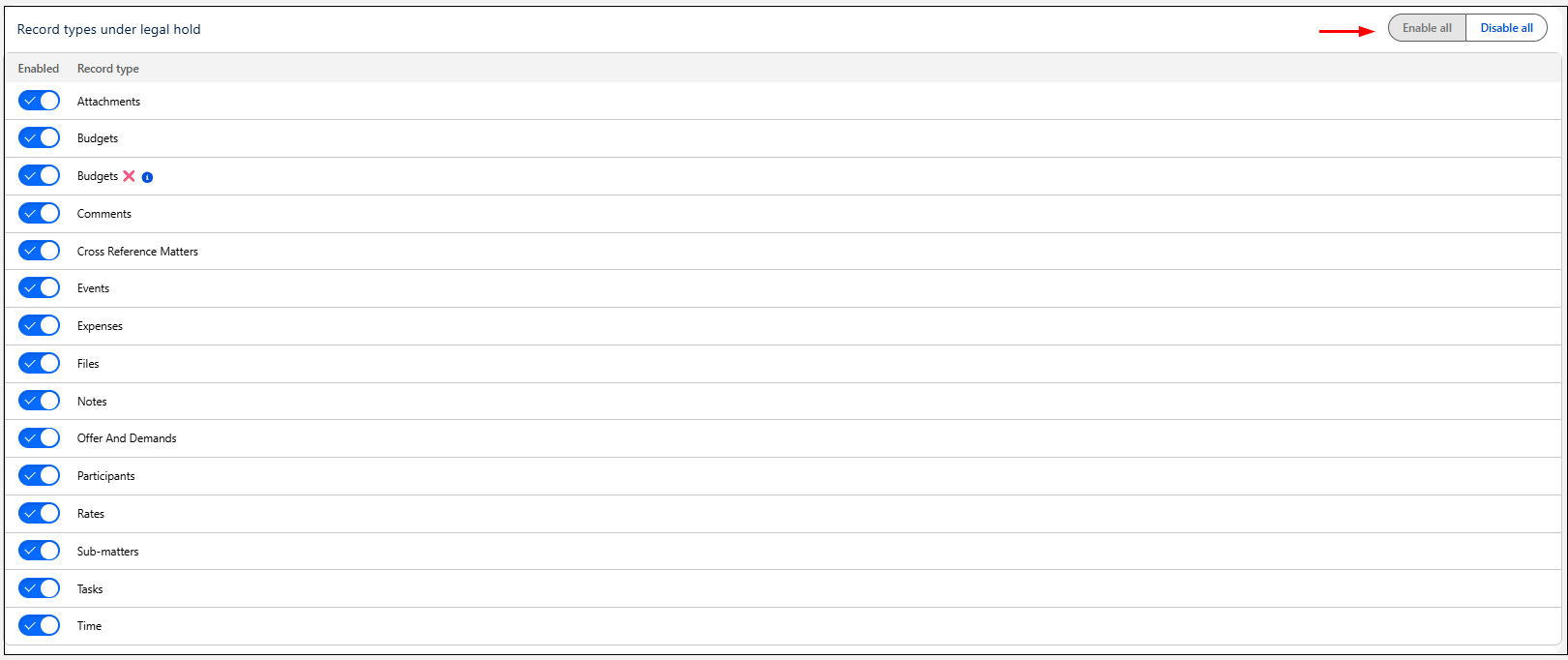
Add Enable or disable all record types
In Edit mode, you can:
- Click Enable all to include all record types in the legal hold process.
- Click Disable all to remove all record types from the legal hold process.
Other Options
Use Enable acknowledgements for the following users to specify which recipients receive legal hold notifications and are required to acknowledge the legal hold.
| Recipient | Description |
|---|---|
| User participant | User participants related to the matter. |
| Matter owner | Owner of the matter placed on legal hold. |
| Account participant owner | Owner of an account participant related to the matter. |
| Contact participant owner | Owner of a contact participant related to the matter. |
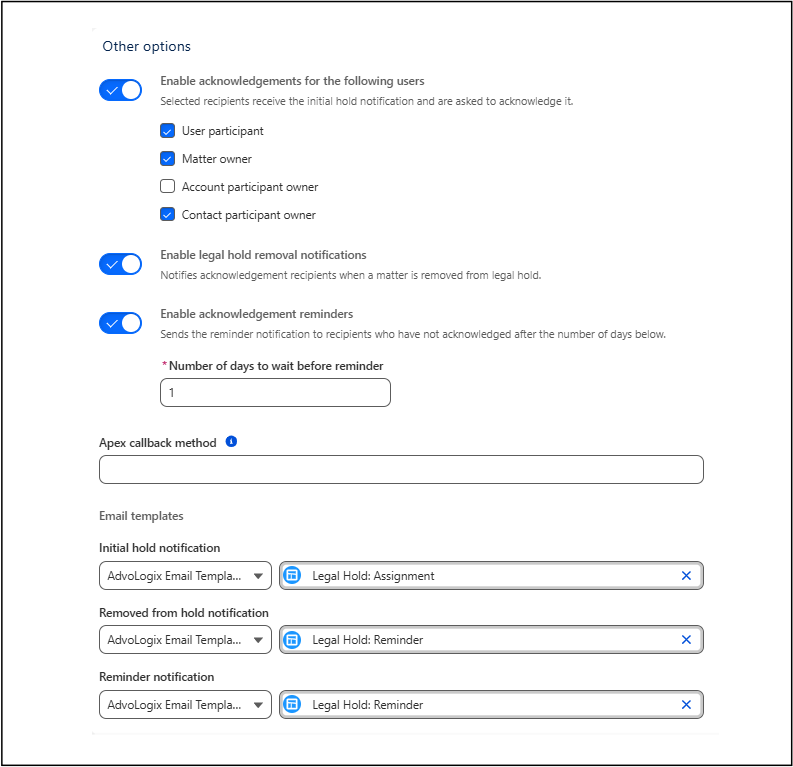
Enable Legal Hold removal notifications?
When enabled, acknowledgement recipients receive a notification when a matter is removed from legal hold.
Enable Legal Hold Acknowledgement reminders?
When Enable acknowledgement reminders is selected, reminder notifications are sent to recipients who have not acknowledged the legal hold.
Use Number of days to wait before reminder to specify how long to wait before sending reminder notifications.
Legal Hold Apex Callback Method
The apex callback method is an advanced feature which allows system integrators the capability to add custom functionality to the legal hold process.
Legal Hold Email Templates
Select the email templates used for the following notifications:
- Initial hold notification - Sent when a matter is placed on legal hold.
- Removed from hold notification - Sent when a matter is removed from legal hold.
- Reminder notification - Sent to recipients who have not acknowledged the legal hold.
Contact Recipients
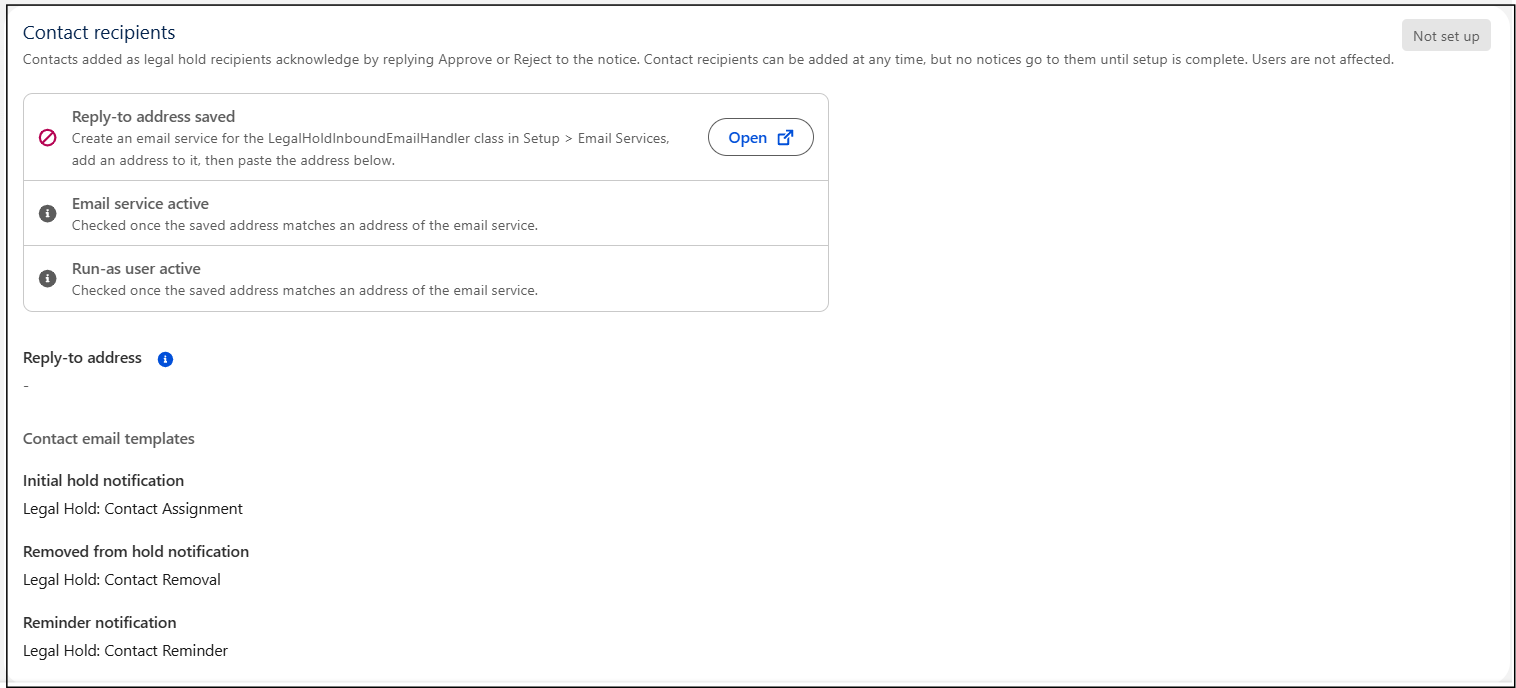
Contact recipients are external contacts who receive legal hold notices and acknowledge them by replying Approve or Reject to the notification email. Contact recipients can be added to a legal hold at any time, but they do not receive notifications until the contact recipient configuration is complete.
This setup does not affect user-based legal hold recipients.
Configure contact recipients
- In AdvoLogix Setup, open Legal Hold.
- In the Contact recipients section, select Open.
- Create a Salesforce Email Service for the LegalHoldInboundEmailHandler class.
- Create an email service address for the Email Service.
- Copy the generated email service address.
- Paste the email service address into Reply-to address.
- Save the configuration.
After you save the address, the system validates the configuration.
Contact recipient status
The Contact recipients section displays the current configuration status.
| Check | Description |
|---|---|
| Reply-to address saved | Verifies that a reply-to address is configured for legal hold notifications. |
| Email service active | Verifies that the configured Email Service is active and that the saved address matches an address defined for the Email Service. |
| Run-as user active | Verifies that the Email Service run-as user is active. |
Status values
| Status | Description |
|---|---|
| Not Setup | A reply-to address has not been configured. |
| Needs attention | One or more validation checks failed. Review the Email Service, reply-to address, or run-as user configuration. |
| Ready | All validation checks passed. Contacts can receive and acknowledge legal hold notices. |
Reply-to address
The Reply-to address identifies the Email Service address that receives contact responses.
When a contact replies Approve or Reject to a legal hold notice, the Email Service processes the response and updates the acknowledgment status automatically.
Contact email templates
Use Contact email templates to select the email templates sent to contact recipients.
- Initial hold notification - Sent when a contact is added to a legal hold.
- Removed from hold notification - Sent when a contact is removed from a legal hold.
- Reminder notification - Sent to contacts who have not acknowledged the legal hold notice.